Search for answers or browse our help center.
-
Air Flex
-
- Adjusting old style rotation (1993 - 2003)
- Air manifold diagram (2012-2018)
- Alignment of lumbar drop pin on a thoracic & lumbar drop frame
- Auto distraction Kelly connections (2010-2018)
- Auto distraction patient stop switch override (2010-2018)
- Auto distraction patient switch enable
- Auto distraction safety relief valve connected to distraction cylinder (2006-2009)
- Auto flex motor connector (2011-2018)
- Check valve location (2007-2011)
- Hose identification on manifold (2012-2018)
- How to Add Gas Shock to Dual Drop with Raise Feature
- How to add tapeswitches to table (pre-2012)
- How to adjust air pressure on pressure switch (1997-2011)
- How to adjust elevator bolt for auto flex (1999-2018)
- How to adjust lateral lock lever
- How to adjust length of drop on air cylinders
- How to adjust rotation lock handle (2004-present)
- How to adjust the stroke on a thoracic breakaway cylinder
- How to align centering pin and cam on pelvic rotation (2004-present)
- How to attach mechlok mount bracket for tilt head
- How to attach repair bracket for mechlok mount on thoracic frame
- How to attach the pancake cylinder bracket
- How to change out large green board (2012-2018)
- How to check auto distraction connections (2010-2018)
- How to check foot pedal connections (2012-2018)
- How to check squeaking on flexion
- How to disable cervical distraction function (2010-2018)
- How to enable options on touchscreen (2010-2018)
- How to Identify a Kelly Valve Revision / Version for Replacement
- How to lock out rotation on pelvic section (1993-2001)
- How to lock pelvic rotation (2004-present)
- How to lubricate the lateral motion
- How to mute sound on touchscreen (2010-2018)
- How to prevent pull out ankle from jamming when pushed in
- How to purge a valve (2012-2018)
- How to remove auto distraction feature with auto flex (2010-2011)
- How to remove wobble from flex lock handle (1993-2018)
- How to replace a valve on the manifold (2012-2018)
- How to reset the click (PLC) for auto distraction or auto flexion (2010-2018)
- How to tighten pelvic rotation (1993-3/2006)
- How to tighten set screw on parker auto flex motor
- How to tighten the auto flex gear on the motor shaft (12/2006-2018)
- How to troubleshoot air coming out of unloader (1993-2011)
- How to troubleshoot weak drops (2012-2018)
- If the distraction doesn't glide smooth
- INS-04 Replacing Rotation Lock Assembly (1999-2003)
- INS-104B Adjusting the Rotation Lock (pre-2003)
- INS-123 Instructions for Converting Regular Height to Short Height
- INS-126 How to replace the check valve (1993-2011)
- INS-5A Instructions for replacing a coil on the valve bank (1993-2011)
- INS-77 Instructions for changing the short cable assembly
- Inspecting height capacitor wires
- Installing a Lock-Out device for the Pelvic Rotation (2001-2003)
- Installing firmware (2012-2018)
- Locating a broken bolt on the lifter tube assembly
- Marshbellofram connections for Auto Distraction (2006-2009)
- Marshbellowfram air line connections (2006-2009
- Pelvic drop does not stay up
- Quick set guide for auto distraction
- Rebuilding Allenair Air Cylinders (1993-6/2007)
- Reed switch test (3/2004-12/2006)
- Replacing the Linear Bearing in a Drop Mechanism
- Repositioning rotation pin with no pelvic drop (2004-present)
- Repositioning rotation pin with pelvic drop (2004-present)
- Rotation lock engaging reference (2004-present)
- Temporary by-pass of auto distraction (2006-2011)
- Tightening the Lateral Lock Adjustment
- Troubleshooting auto distraction with a marshbellowfram
- Troubleshooting auto flex motor not starting (2011-2018)
- Troubleshooting coil and valve (1993-2011)
- Troubleshooting green board or power button shutting down (2012-2018)
- Troubleshooting thoracic & lumbar drops
- Valve manifold identification (2012-2018)
- Verifying the pelvic rotation centering pin (2004-present)
- What to check if compressor never shuts off
- Show all articles (60) Collapse Articles
-
- Add tape switch (tables beginning Jan 2019)
- Add Tape Switch (Tables January 2019 - Present)
- Air Flex II Power Switch
- Change HMI
- Changing HMI on an Air Flex II Table (2010 - 2018)
- Communication Cable Connection
- How to change or replace the touchscreen (HMI)
- How to Replace the Check Valve
- How to Replace the Communication Cable Connection
- PLC Power Connector
- Power Connector to the PLC
- Replace PLC
- Replace the Harness for a Touch Screen
- Replace the Power Supply Board
- Replace the VPPM
- Replace Unloader Valve, Air Flex II, Tables 2019 - Current
- Replacing the PLC
- Replacing the Power Supply Board
- Replacing the unloader valve
- What version is my firmware?
- Show all articles (5) Collapse Articles
- 3-Way Switch Wiring Diagram
- 4-Drop air hose layout (1993-2011)
- 4-Way Switch Diagram
- Add a Filter
- Add a Tape Switch to Tape Switches
- Add Auto-Drain Air Filter
- Add AutoFlex Feature
- Add Distraction - Only Add Lumbar
- Add Double Touch to a Table w/ No Printed Board
- Add Drop Function to an 8-inch Cushion
- Add Drop Function to an 8in Cushion
- Add Filter to Airflex
- Add Flex Head Head or CBP Head
- Add Flex Head or CBP Head
- Add Flow Control to the Pelvic Drop
- Add Rotation
- Add Second Bolt-On Control Box
- Add Second Control Box
- Add Side Supports
- Add Square Tape Switch Above Touch Screen
- Add Tape Switch ( Airflex 2012 - 2018; AirC/Deluxe AFT 2012 - Present)
- Add Thoracic Breakaway
- Adding a Corded Pedal to a Table with One Corded Foot Pedal
- Adding a Gripper Bar Assembly
- Adding Flow Control Valves (Valve Restrictors) to Air Drops
- Adjustable Rotation Lockout Bar
- Adjusting the Flex Position Sensor (January 2019 - Present)
- Air Flex Auto Distraction (Tables Built Feb 2010 - Dec 2018)
- Airflex Ankle Mechlok
- Ankle Mechlok Stop
- Bolt-on Gripper Bars Set
- Cervical Tilt Mechlok Unit
- Change height from 22.5" to 21.5"
- Compressor Capacitor
- Control box location mounted on cushion (1993-2011)
- Cushion Post Assembly
- Cylinder Rebuild
- Finger Guards
- Flex Lock Rack Replacement
- Flow Control Valve
- Flow Control Valve for 8 in Thoracic and Lumbar Drops
- How to Add Flow Control to the Pelvic Drop of an Air Flex Table
- How to Disconnect the Air Cylinder on an Air Flex Table
- How to Mount a Pelvic Cushion onto an Air Flex Table
- How to Replace a Tape Switch on an Air Flex Table
- How to Replace the Upper Pivot Lock Lever on an Air Flex Table
- If scissor pin loosens or comes out
- Increase Hose Size from the Compressor
- Install Sleeve Bushing
- Install Snap-Grip
- Installing raised Ankle on AFT or Airflow
- Lumbar Cylinder Mount
- Manifold Valve
- Modify Original Cushions for New Style Drop Rods
- Modify Thoracic Cushion
- Modifying "Long" (18 3/4") Pelvic Cushion for Rotation with Mechlok
- Motor Terminal Block
- Mount at Square End of Thoracic Cushion
- Mount for Lateral Head Mechlok
- Mounting a Mechlok Release
- New Motor Wiring
- Pancake Repair
- Pelvic Cushion Spacer
- Pelvic Drop Rod Washer
- Pelvic Drop, Steel Ball
- Power Supply (After 2003)
- Pressure Gauge Replace
- Rebuild Compressor
- Reed switch mounting (2011-2018)
- Relocate Mechlok Mount Tube Relative to the Hinges
- Remove the Selector Knob from Socket
- Removing Cushions
- Repair Bracket for Mechlok Mount on Thoracic Subframe
- Repair Bracket for Mounting the Thoracic Mechlok (Tables January 2013 - Present)
- Repair Bracket for Mounting Thoracic Mechlok
- Repair Coupling Nut
- Repairing the Head Piece Mechlok Unit
- Replace 6-Gang Manifold
- Replace a Tape Switch
- Replace a Valve on the Manifold
- Replace Air Compressor
- Replace Air Filter
- Replace Air Filter (April 2007 - Present)
- Replace Air Filter (Tables before April 2007)
- Replace Allenair Felxion Cylinder with Festo Brand
- Replace Board in Control Box
- Replace Check Valve
- Replace Distraction Assembly
- Replace Distraction Frame Only
- Replace Flat Spring
- Replace Flex Lock and Flexion Cylinder
- Replace Flex Lock Assembly
- Replace Flexion Cylinder
- Replace Flexlock Assembly
- Replace Furnace Brand Pressure Switch (Tables Built Before March 1997)
- Replace Furnace Brand Pressure Switch (Tables Made March 1997 - Present)
- Replace Gast Air Compressor
- Replace Marsh Bello Fram with Kelly and Touchscreen
- Replace Mechlok Mount (Airflex 2013 - Current)
- Replace Mechlok Mount (Tables 2013 - Current)
- Replace Original Distraction Cylinder with 2-inch
- Replace Pelvic Drop Pin
- Replace Pressure Pedal
- Replace Pressure Switch, but Keep Original 2-Ware Compressor
- Replace Raised Head with Lateral Raised Flex Head or CBP
- Replace Reed Switches (February 2008 - June 2009)
- Replace Reed Switches (Tables thru Feb 2008)
- Replace Rotation Lock Cam
- Replace Spring in Thoracic or Lumbar
- Replace Square-D Pressure Switch
- Replace Tension Spring in Thoracic & Lumbar
- Replace Tension Spring in Thoracic and Lumbar
- Replace the 4-Position Selector Switch
- Replace the Air Compressor
- Replace the Air Cylinder
- Replace the Air Cylinder Clevis
- Replace the Autoflex Motor
- Replace the Banjo Fitting
- Replace the Click Controller
- Replace the Communication Cable
- Replace the Extension Spring
- Replace the Flex Cylinder (Tables 2019-present)
- Replace the Flex Cylinder (Tables Oct 2007 - Dec 2018)
- Replace the Flex Lock Lever
- Replace the Flex Lock Spring
- Replace the Flex Position Sensor (Tables 2019 - Present)
- Replace the Glide Bar Guide
- Replace the Main Board
- Replace the Plunger Bracket
- Replace the Pressure Relief Valve
- Replace the Solenoid
- Replace Thoracic Breakaway Cylinder
- Replace Thoracic Mechlok
- Replacing a Coil on Deluxe Version
- Replacing a Push Button Switch
- Replacing a Valve
- Replacing a Valve on a Table with 1 or 2 Drops
- Replacing a Valve on Deluxe Version
- Replacing a Wire to the Valve
- Replacing Air Compressor with No Capacitor and 2 Wires With a Compressor That Has a Capacitor and 3 Wires
- Replacing Raised Ankle on AFT or Airflex
- Replacing the Motor on an Autoflex
- Replacing the Plastic Air Tank
- Rotation lock out explanation (1993-2003)
- Rotation Pivet Weldment (Yoke) Replacement
- Rotation Pivot Casting Replace
- SMC to Festo Replace
- Spartan air hose diagram (1993)
- Tension Knob Friction Plates
- Thoracic and lumbar drop pin assembly
- Thoracic Breakaway - Flow Control Valve
- Thoracic Cable Routing
- Thoracic drop pin alignment
- Thoracic mechlock release with air cylinder
- Turn off Sound to Touch Screen
- Unloader Valve
- Untitled
- When Gear on Motor is Not Staying Engaged
- Wire Colors for Board Replace
- Wire Harness
- Wiring of control box for deluxe (Rear View)(1993-2011)
- Show all articles (146) Collapse Articles
-
Add Distraction – Only Add Lumbar
Auto Distraction – Only Add Lumbar
Add to Tables with AutoFlex
Tables after August 2007 have SMC cylinder
Tables after February 2010 have 150 watt power supply
Tables after January 2011 have touch screen
Parts:
Touch Screen (if needed) & Kelly Regulator
Patient Stop Switch (H516)
Phono Jack, wired, in enclosure (H1624)
Switch Holder (H2787)
5/32″ Air Hose, 2 ft long
Screws, 1″ dry wall
Wire Ties 8″ (H4256)
cord w/ black & red leads (to Kelly)
Y fitting, 5/32″ (H6881)
power supply, 150 watt (if needed) (H8356)
1. Use the pedal to elevate the tables to its highest elevation.
2. Unplug the table.
3. Remove the inner and outer sections of skirt.
4. Snap the air regular onto the din rail. It must be orientated as the photo shows in order to prevent damage when the table height is adjusted.
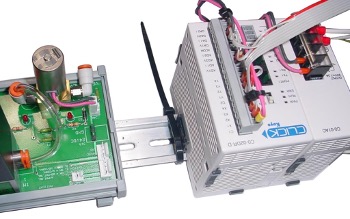
5. Connect the enclosed cord between V+ (red) and V- (black) of the power supply and the 24V DC (red) and GND (black) pins on the regulator board. Connect the ribbon cable from the click to the location indicated below on the Kelly board.
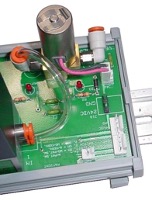
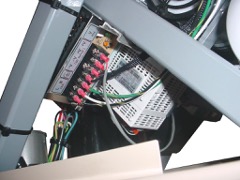
6. Follow the air hose from the distraction cylinder to the distraction valve on the manifold. Remove the hose from the valve and insert it in the connector on the “2CYL” of the Kelly. Insert length of hose into the valve on the manifold for distraction and the other end into the “Air In” connector on the Kelly Board.
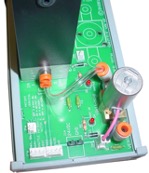 Air In from Distraction Valve on Manifold
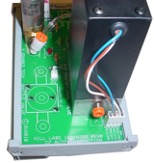 “2CYL” to cylinder
7. Attach the patient stop switch next to the touch screen as shown. Both the switch jack and the switch holder are secured to the cushion with screws.
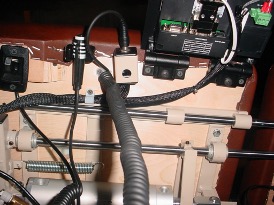
8. Reattach the inside and outside skirt.
9. Follow the instructions on the next sheet to enable the auto-distraction function on the touch screen.
Enable Auto-Distraction
The picture below shows the screen as it appears when the power is first turned on, There is an invisible button below and slightly to the right of the ‘E’ in “FORCE”. Press there.
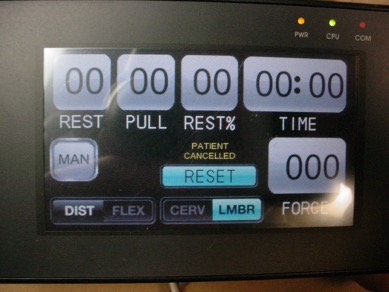
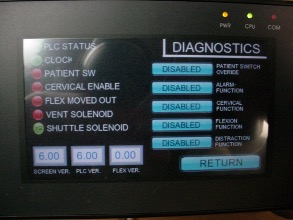
The last function listed is Autodistraction. Press the “DISABLED” button alongside that function to enable it. Press “RETURN” at the lower right to begin using your table.